Site upkeep in 2026
WordPress remains the world’s most popular content management system — powering a large portion of all websites on the internet with a rich ecosystem of themes, plugins, and tools. But that popularity comes with a trade-off: a WordPress site needs regular attention to stay secure, fast, and functioning as intended.
Whether you manage your website yourself or have someone do it for you, understanding the essential maintenance tasks can help you avoid downtime, performance issues, and lost leads.
Below is a practical, up-to-date guide to what you should be doing regularly to maintain your WordPress website in 2026.
Why Regular Maintenance Matters
When your WordPress site goes live, the work isn’t finished — it’s only starting.
WordPress has a large ecosystem, which means the software core, your theme, and every plugin you use are constantly being updated by developers with new features, bug fixes, and performance improvements. If you don’t stay on top of these changes, your site can break, slow down, or behave unpredictably over time.
Regular maintenance also helps you catch issues early before they turn into serious problems, from broken contact forms to 404 links that frustrate visitors.
1. WordPress Core, Theme & Plugin Updates
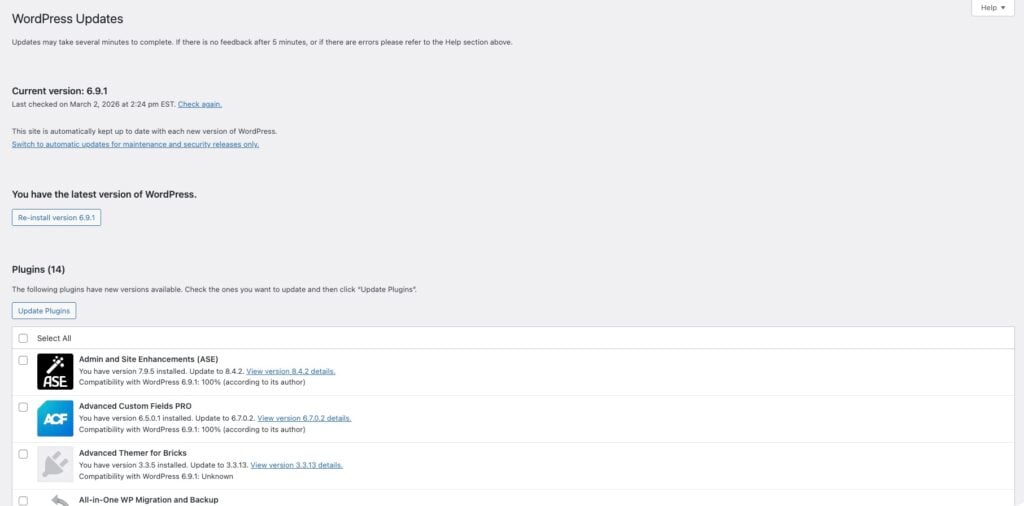
One of the simplest yet most important maintenance tasks is keeping your WordPress installation and everything that runs on it up to date.
What to update:
- WordPress core software — the platform itself
- Themes — both active themes and any installed ones you might switch to later
- Plugins — all installed plugins, especially those that are active
Updates often include bug fixes, new features, and improved compatibility. While automatic updates can help, it’s still important to check manually so you can test after changes and avoid conflicts.
Frequency: Weekly — and more often if your site sees frequent changes.
2. Regular Backups
Regular backups are your safety net. If an update goes wrong, a plugin breaks, or your web host experiences issues, a backup lets you restore your site to a working state.
Backup best practices:
- Store backups off-site (e.g., cloud storage or third-party backup services)
- Include both database and files in every backup
- Keep multiple recent copies in case the latest backup is compromised
Frequency:
- Daily for active or dynamic sites (e.g., e-commerce, frequent publishing)
- Weekly for smaller or low-change sites
3. Performance Monitoring and Optimization
4
Over time, a WordPress site can slow down due to larger images, extra plugins, and accumulated database junk. Performance issues impact user experience and search engine visibility.
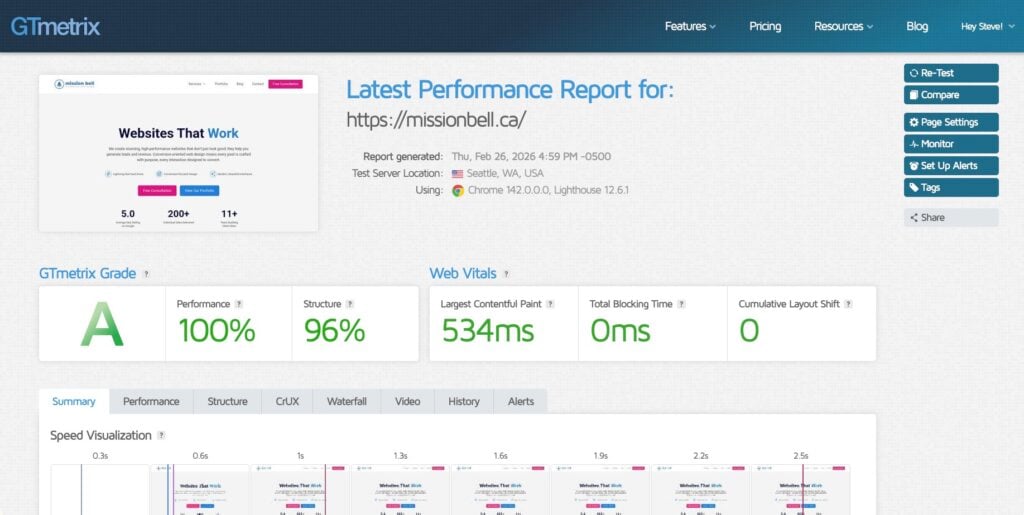
Key areas to monitor:
- Page Speed — use tools like GTmetrix or PageSpeed tools
- Image Sizes — ensure images are optimized for web use
- Caching — configure caching plugins to reduce load times
- Database Cleanup — remove revisions, spam, and transient entries
Frequency: Monthly
4. Uptime Monitoring
Downtime can happen for reasons unrelated to WordPress itself — from hosting issues to server overload. If your site goes offline without your knowledge, you could miss leads and frustrate visitors.
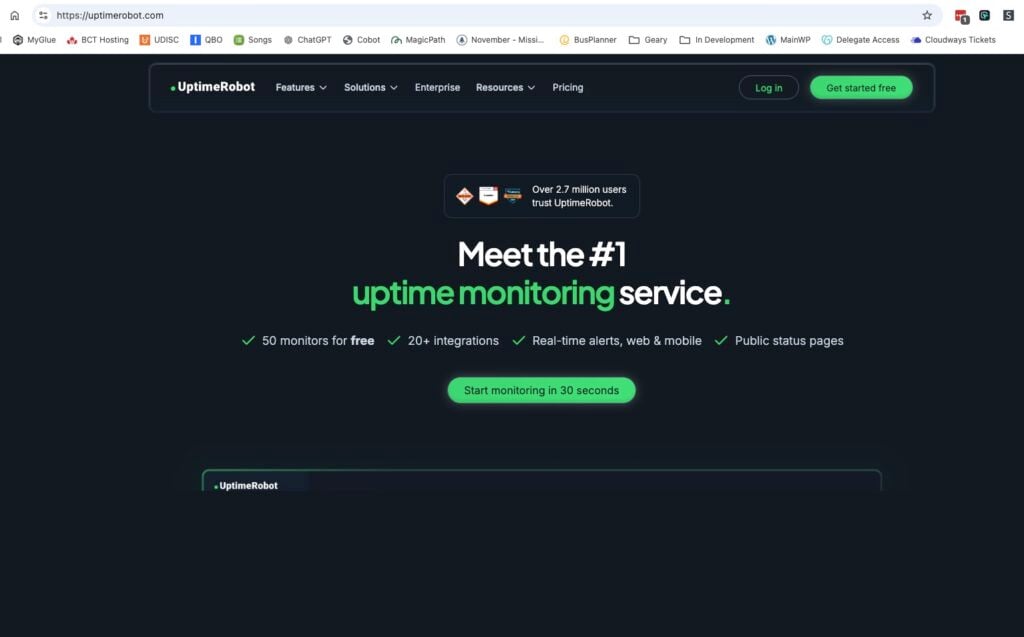
Use a monitoring tool to notify you immediately if your site becomes unavailable. These tools check your site at regular intervals and alert you if there’s a problem. Try Uptime Robot for free monitoring
Frequency: Continuous (with alerts)
5. Broken Link Checks
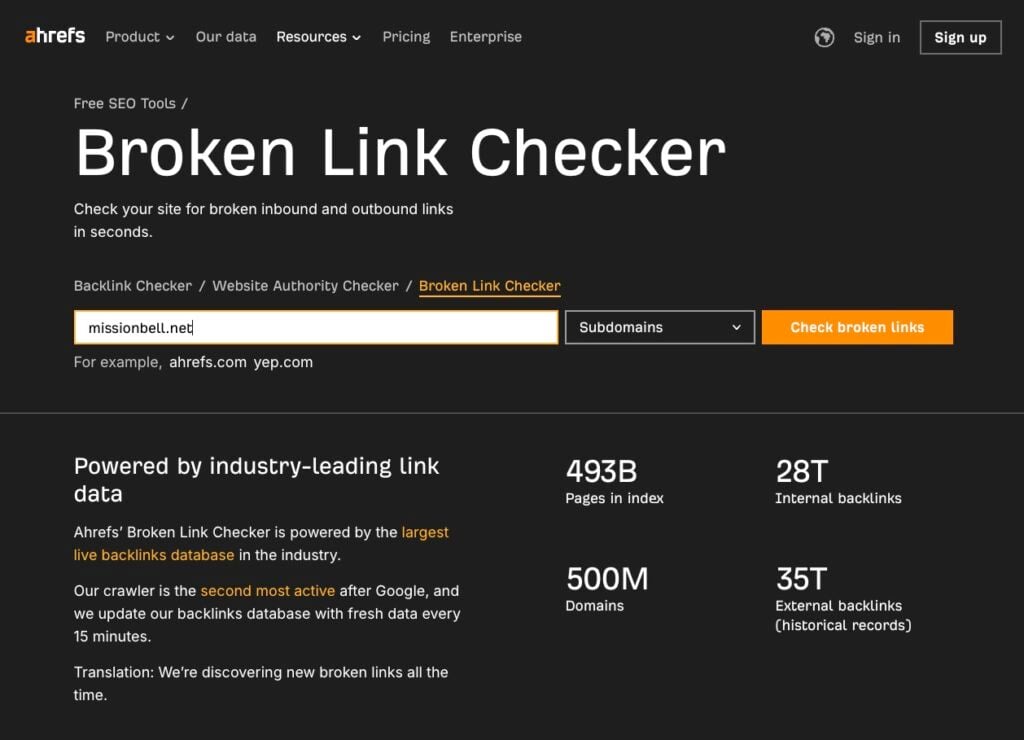
Links naturally change over time — whether internal pages get moved or external content disappears. Broken links make your site feel outdated and can hurt usability. Consider using a tool like aherf’s broken link checker.
What to check:
- Internal links (changed page structures or deleted pages)
- External links (content removal on other sites)
Tools can automatically scan your site and report broken links so you can fix or remove them.
Frequency: Monthly
6. Comment & Spam Management
If you allow comments or user submissions, spam can quickly build up — making your site look unprofessional and slowing performance.
Use anti-spam tools and regularly review and remove spam or inappropriate content. Depending on your site’s activity level, you might also choose to moderate comments before they appear.
Frequency: Weekly
7. Database Optimization
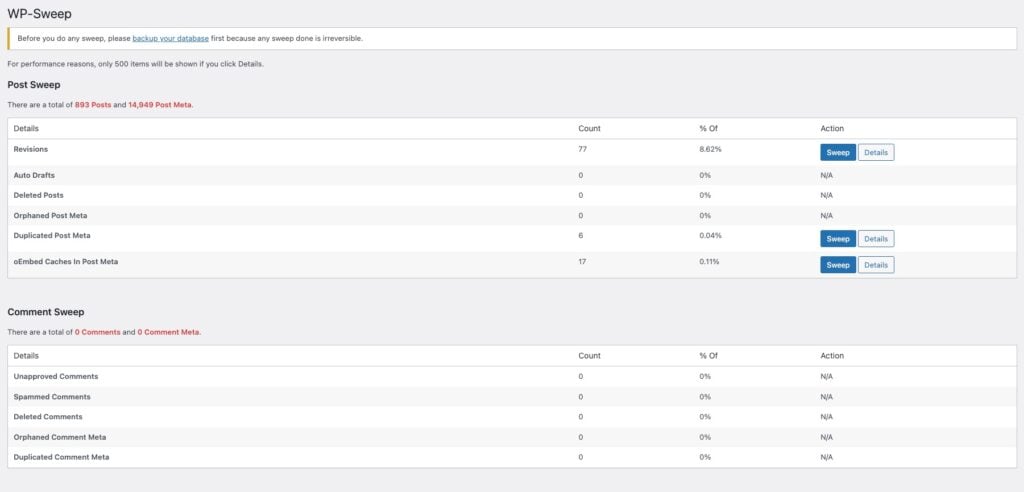
WordPress stores everything — posts, settings, drafts, revisions, and more — in a database. Over time, this can become bloated with temporary data.
Optimizing your database — by cleaning up unused entries and overhead — improves performance and reduces server load.
Your host control panel or caching plugin may offer database optimization tools, or else, you can try using WP-Sweep from the WP plugin repository.
Frequency: Quarterly
8. Test Contact Forms and Functional Elements
Contact forms and interactive elements are essential — especially for business sites relying on leads. If a form stops sending emails or a feature breaks, you might never know unless you test it.
Submit a test form, ensure notifications work, and verify integrations (e.g., CRM or email tools).
Frequency: Monthly
How Often Should You Maintain Your WordPress Site?
Here’s a simplified schedule you can follow:
- Weekly: Updates, backups, comment moderation
- Monthly: Performance checks, uptime review, broken link scans, form testing
- Quarterly: Database optimization
This cadence keeps your site reliable without turning maintenance into a full-time job.
In Closing
A WordPress website isn’t something you “set and forget.” It’s a living system that benefits from regular care — like updating its software, tracking performance, and making sure everything works as expected.
If regular maintenance feels overwhelming, consider a structured maintenance plan that handles these tasks for you so you can focus on your content, marketing, and business goals.